
Team: Huntress Managed Security Awareness Training (SAT)
Environment: SAT, Learner Dashboard
Summary: The learner dashboard provides learners with a centralized view of their assigned training. This article gives managers and internal administrators an overview of what learners see in the dashboard and how they interact with it.
In this Article
- What is the Learner Dashboard
- Accessing the Dashboard
- Dashboard Pages
- Profile Settings
- Manager Dashboard
What is the Learner Dashboard
The learner dashboard is the Security Awareness Training (SAT) portal where users (learners) access and complete their training. From this dashboard, learners can see required training, review completed training, view achievements, and complete phishing defense coaching. It’s designed to give each learner a centralized, self-service view of their training responsibilities and overall progress.
Accessing the Dashboard
Active learners can access the dashboard using the method configured by the account administrators. Please review our learner authentication documentation for more information on the different methods available. In most cases, learners will receive either an enrollment or reminder email with a link to access their learner dashboard and training. Below are (unbranded) examples of notifications learners may receive.
There is no default welcome email sent when a learner is activated. They will only receive an email to access the dashboard when they are enrolled in their first assignment.
Enrollment Email
The example email below shows enrollment using the Magic Link authentication method. To access the Dashboard, they can select Access Training or copy and paste the link provided in the email. Expired magic links will still work, but will ask the learner to re-enter their email address to receive a new email with a fresh link.
Reminder Email
Below is an example of a reminder email using the Magic Link authentication method. Learners can access the dashboard from the weekly reminder emails by selecting Access Training. As the end date for an assignment gets closer, the email subject and messaging will advise learners how many days they have until it is due.
Slack Message
Below is an example of how learners can access their dashboard if Slack message delivery is integrated. This will be a similar format when using the Microsoft Teams integration.
Dashboard Pages
This section will cover the different pages within the learner dashboard. This includes the main Dashboard, Achievements, Assignments, and Simulations.
Dashboard
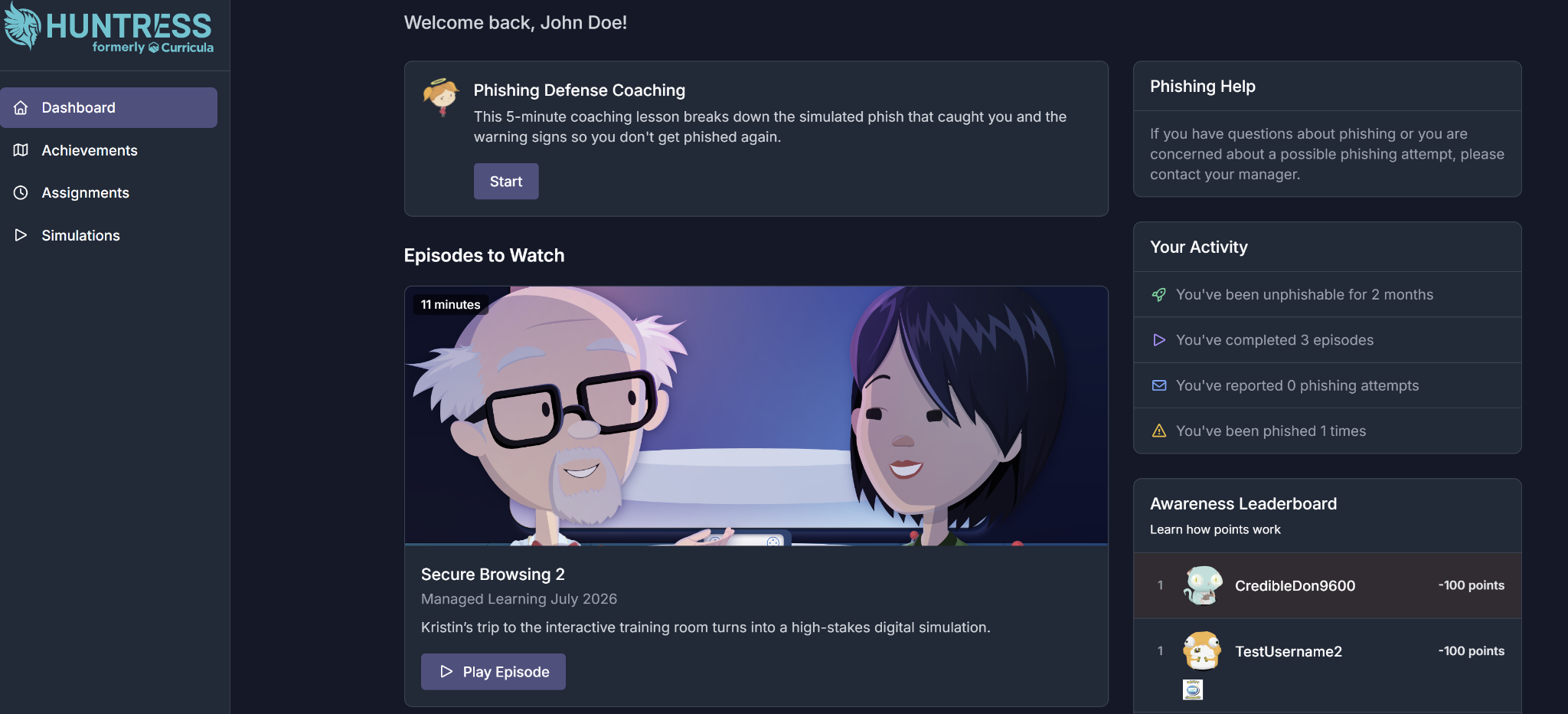
The first page that a learner sees is the main Dashboard. This page has all the important information they need to complete and manage their training. A few of the key sections on this page are as follows:
Episodes to Watch - This is where all their assigned training episodes will appear. They can jump right into any required episodes by selecting Play Episode.
Only incomplete episodes that are part of an active assignment will be displayed. Once completed or if the assignment expires, they will disappear from the main dashboard but remain visible in their Assignments page.
Awareness Leaderboard - A real-time view of the current leaderboard within their learner group. This will highlight the points they have achieved and where they rank. Only usernames can be displayed, and anonymous usernames are used by default. More information can be found in our SAT Leaderboards article.
Phishing Defense Coaching - This section only appears if a learner was compromised in a phishing campaign and did not complete their Defense Coaching immediately after becoming compromised. An example is shown at the top of the screenshot below. This will not expire and will remain on their dashboard until it is completed.
Achievements
The Achievements page in the SAT learner dashboard is a dedicated area where learners can see goals they’ve earned through their security awareness training, as well as those they’re still working toward. It visually displays completed and locked achievements tied to actions like finishing an episode with a perfect score or reporting a phishing simulation. It provides learners with a quick, gamified summary of their progress and encourages them to keep engaging with training over time.
The example below shows several achievements that are currently grayed out, indicating they have not yet been completed. Once a learner earns an achievement, it becomes highlighted. Each one includes a short description explaining what the learner must do to unlock it.
Assignments
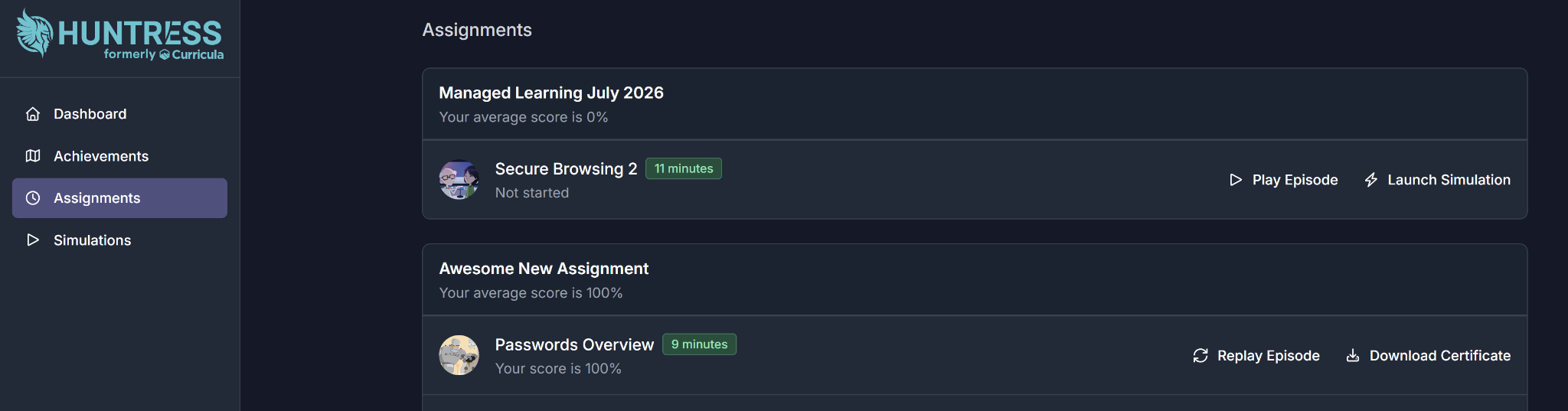
The Assignments page in the learner dashboard provides a detailed view of all training that has been assigned to a learner. From this page, learners can open and play active episodes, launch any linked Threat Simulations that are paired with the training, and replay previously completed episodes as refreshers. When training is finished, the Assignments page also provides access to download available Certificates of Completion for their records.
Simulations
The Simulations page in the learner dashboard is where learners can access the interactive threat simulations. This page allows access to all available simulations. This gives learners an on-demand way to reinforce their skills beyond their scheduled assignments.
Profile Settings
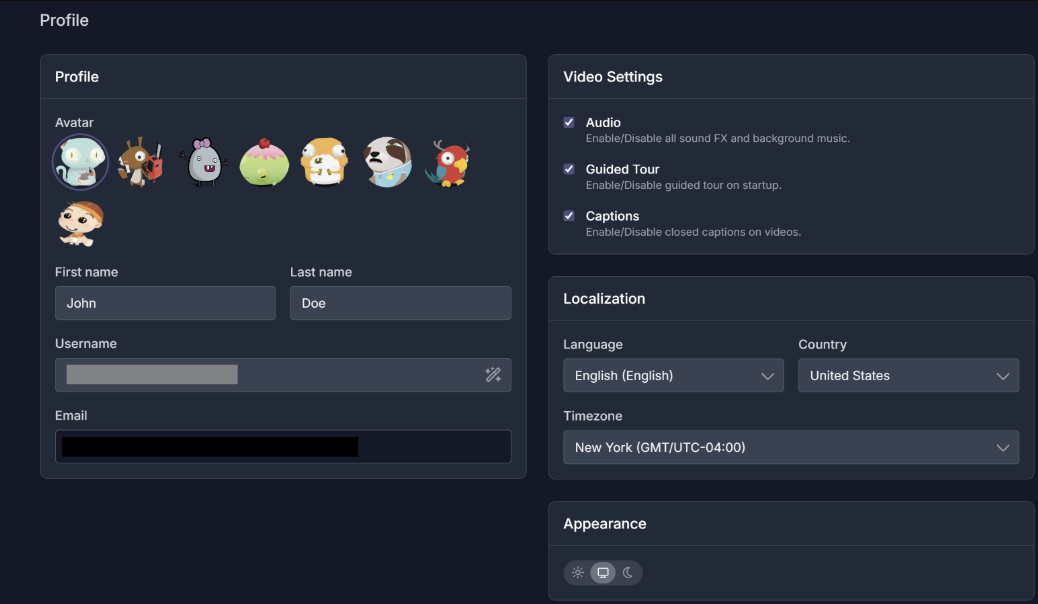
The learner dashboard provides a few customization options in the profile page. Learners can change their profile avatar, update their name, and change their username. Additionally, they can update their language preferences and time zone, and switch between light and dark mode.
To locate the profile settings page, select their username at the bottom of the menu sidebar, then choose Profile.
Manager Dashboard
The Manager Dashboard section is only available to learners who have been granted general manager access by an SAT administrator. It provides a high-level view of training and phishing progress for the learners they oversee, including who has completed assignments and who has outstanding training. For setup steps, permissions, and full capabilities, please refer to our General Manager article.