
Team: Huntress Managed Security Awareness Training (SAT)
Product: Microsoft 365
Environment: Microsoft Graph sync for Microsoft 365 directories
Summary: Set up the OAuth-based Microsoft Graph integration to sync learners from a Microsoft 365 directory to Huntress Managed Security Awareness Training (SAT), then configure optional API message insertion.
In This Article
- Create an Integration Provider
- Map a Managed SAT Group
- Configure Group Settings
- Review and Run the Sync
- API Message Insertion
- Troubleshooting
This article covers OAuth-based integration. For legacy integration instructions, see Microsoft Graph Integration—Legacy.
Create an Integration Provider
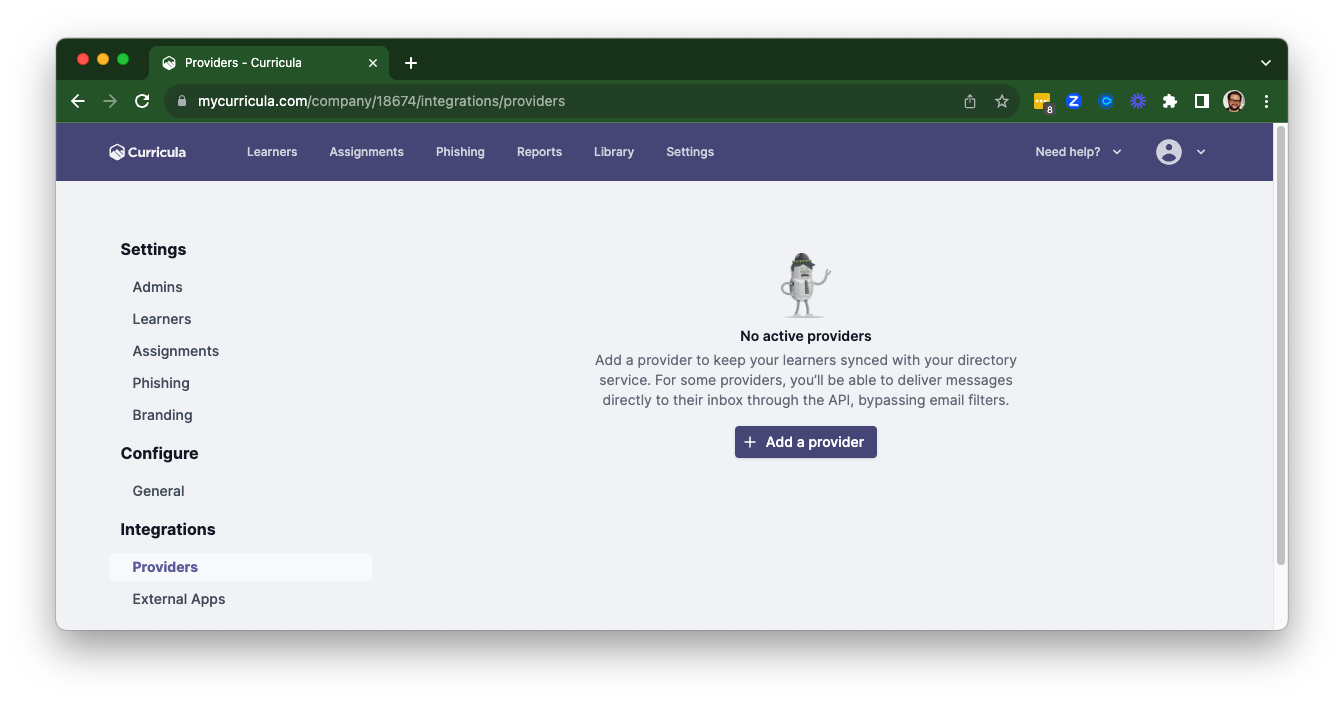
- In SAT, go to Settings > Providers in the relevant sub-account.
- Select Add a provider.
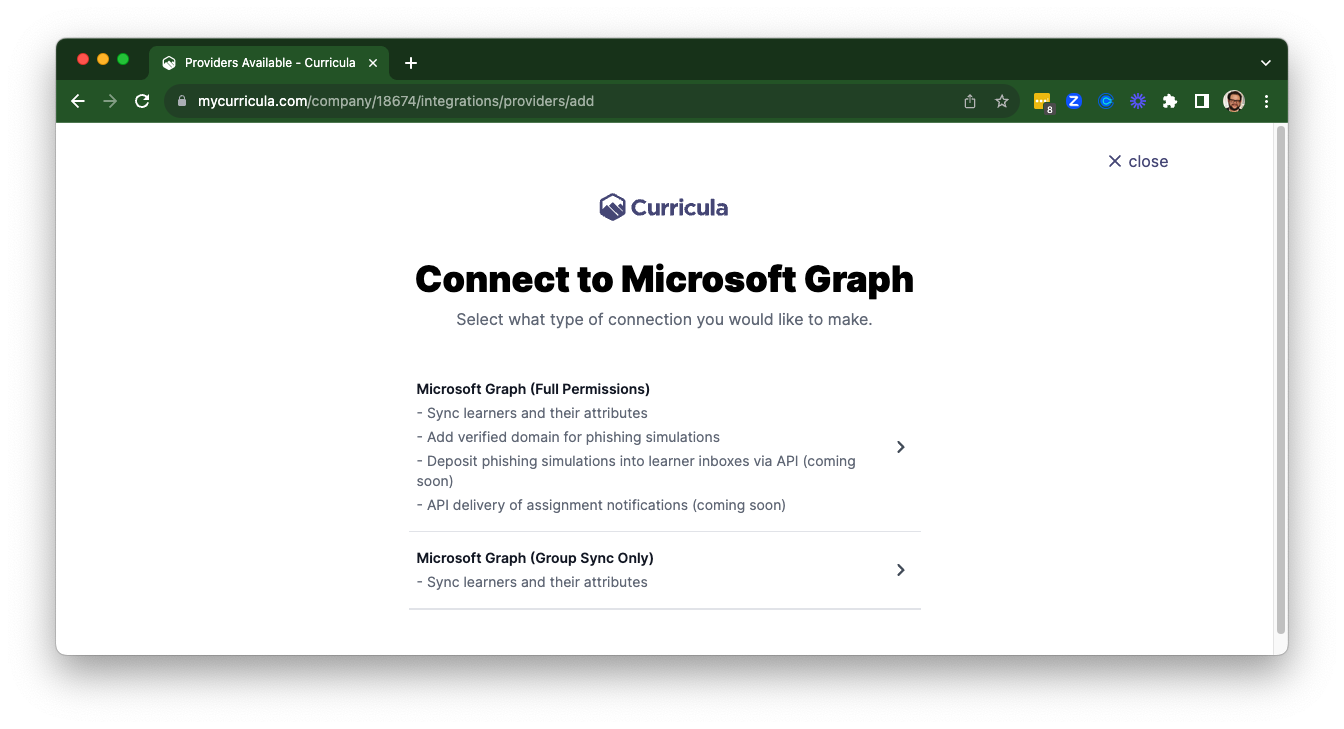
- In the Microsoft Graph tile, select Connect.
- Select the permission level to grant to Huntress Managed Security Awareness Training.
- We recommend Full Permissions. This option supports traditional email delivery and API message insertion, but it requires Huntress to read and write messages.
- Alternatively, grant permission for group sync only. This limits the product’s capabilities and is recommended only when your organization requires a limited scope.
- Authenticate with your Microsoft 365 account and select Accept when Microsoft displays the requested permissions.


Map a Managed SAT Group
- If SAT does not open the group setup step automatically, select Connect a group on the provider details page.
- Choose whether to connect an existing Managed SAT group or create a new group. The Staff group is created by default in Managed SAT accounts, and there is a one-to-one mapping between a Managed SAT group and a Microsoft 365 mapping.
- Configure the group settings.


Configure Group Settings
- Leave Group ID blank to synchronize all identities in the Microsoft 365 directory, or enter the group’s GUID to synchronize a specific group.
- To use the UPN (User Principal Name) attribute instead of Email, select the applicable option before syncing.
- We recommend enabling the following settings:
- Exclude unlicensed identities excludes identities without assigned licenses.
- Automatic Daily Sync schedules updates every 24 hours.
- Attribute Options keeps the available attributes enabled unless you want to ignore specific fields.
- Set non-present learners to Inactive status marks learners as Inactive when they no longer appear in the directory.
- Create Departments as needed creates departments when they appear during synchronization.
- Leave Set present learners to Active status disabled. If enabled, SAT marks every present learner as Active, even if the directory marks the learner inactive or suspended.

Review and Run the Sync
- Select Preview & Sync to review the statistics and affected identities on the Log tab.
- If the results are correct, select Apply Manual Sync.
- Review the sync results or download the CSV sync record from the Log tab.


The manual sync saves the configuration. Return to the provider details page to modify the settings or add another group.
API Message Insertion
When you select Full Permissions, the options to insert phishing and transactional messages are enabled by default. The system attempts to insert messages through the API and falls back to SMTP delivery if API delivery fails. Transactional messages use the sender name and email address configured in Branding.
Important: API insertion bypasses inline filters but may still be affected by Microsoft Defender for Office 365 P1 or P2. If your organization uses one of these products, allowlist the Huntress Managed SAT domains.
Messages sent through API insertion do not appear in SMTP logs or Message Tracking. To verify delivery, check the target mailbox and Notification Logs via instructions outlined here.

Troubleshooting
If you see "Error Connecting Microsoft", a Conditional Access policy in the tenant might require a managed device. Retry the connection from a device that's joined to or compliant in that tenant, such as a company-managed Windows PC rather than an unmanaged Mac.