
Team: Huntress Managed Endpoint Detection and Response (EDR) and Huntress Managed Identity Threat Detection and Response (ITDR)
Product: Huntress Platform
Summary: Learn how to quickly navigate and digest Huntress endpoint and cloud identity incident reports to locate threat details and execute remediations.
In this Article
Overview
Before You Begin
Navigate Incident Report Sections
Which type of incident report do I have?
Pulling out key Incident Report Information
Summary
Key Details
Timeline
Critical Actions Taken
What Huntress did
Recommended actions
I need more help reading this report
Overview
Huntress Incident Reports provide clear, human-reviewed context about security threats detected across your endpoints and cloud identities. Whether a threat stems from endpoint activity identified by Huntress Managed Endpoint Detection and Response (EDR) or compromised user accounts detected by Huntress Managed Identity Threat Detection and Response (ITDR) for Microsoft 365, understanding how to digest these reports quickly helps you evaluate severity, identify affected entities, and approve or execute necessary remediations.
Before You Begin
Before reviewing incident reports, make sure you:
Have active login credentials for the Huntress Platform.
Hold an Account Admin, Organization Admin, or Account Read-Only role.
Navigate Incident Report Sections
To access and review the key details of an incident report:
Log in to Huntress and go to Incidents > Active Incidents.
Select the incident report you want to review.
You might have received a Huntress Incident Report and asked yourself, "Now what?" or "How do I read this?" Use this article to understand the structure of Huntress Incident Reports and learn what actions to take next.
Which type of incident report do I have?
Incident reports come from our EDR (endpoints) or ITDR (identities) platforms.
EDR
The endpoint or host name will appear in the report title, and the word 'host' will be referenced in a few locations at the beginning of the report.
ITDR
The user or identity name will appear in the report title, and the word 'identity' will be referenced in a few locations at the beginning of the report.
Pulling out key Incident Report Information
Toggling between the different report tabs, you will quickly be able to determine the following on each report:
Note: The amount of information in each report will vary with the quantity and fidelity of the signals (indicators of compromise) included in the report.
EDR:
ITDR:
Summary
Each Huntress Incident Report includes a Summary section to answer the question, "What happened?" Use this section as your first step to understand the incident.
EDR:
In Huntress Managed Endpoint Detection and Response (EDR) reports, the Investigative Summary details the technical narrative of the incident. It explains what Huntress observed, how the activity unfolded, and the evidence supporting the malicious determination. This provides your technical team with the context needed to understand and remediate the incident.
ITDR:
In addition to the Investigative Summary, Huntress Managed Identity Threat Detection and Response (ITDR) reports include two additional summaries:
Export PDF: Generates a client-shareable PDF containing the incident timeline, attack details, and report summary. Note that this is a new feature and may not be available in all incident reports yet.
Executive Summary: Provides a plain-language version of the technical incident report intended for business owners, leadership, insurers, and legal stakeholders. It includes what happened, business impacts, any actions taken, how it occurred, and how to prevent it from happening again.
Key Details
Key details are the concrete facts to understand the incident, assess its impact, and know what action is required.
- Report tab: names of the impacted entities, immediate actions taken (impact), and any summary details.
- Remaining Footholds and Signals Investigated tabs: supporting evidence around events and any threats that must still be removed.
- Remediations and Recommendations tabs: actions needed to recover from the incident and next steps to take after remediations complete.
- Comments tab: changes to the incident report by a SOC analyst may be added here. This can also be used for internal communication between partner technicians when addressing an incident report.
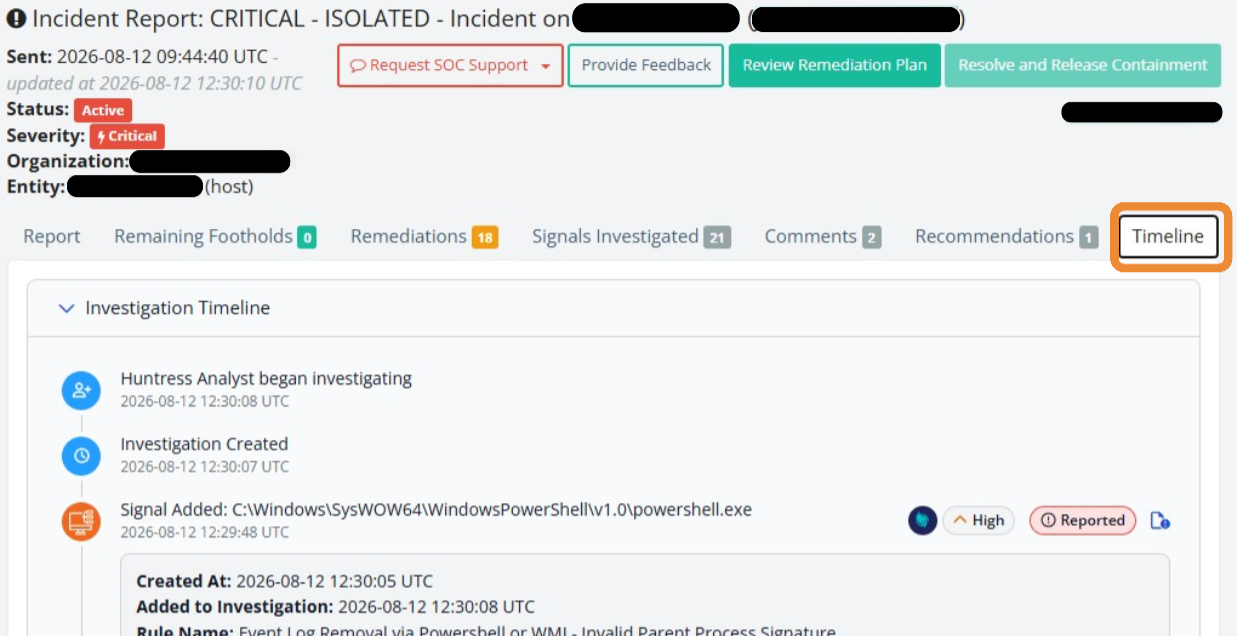
- Timeline tab: shows the timeline of events from initial event ingestion to first action taken.
EDR:
ITDR:
Timeline
The Timeline tab provides a chronological view of the incident: from the earliest observed activity through investigation, response, and resolution. It highlights key milestones, attacker activity, data access, and remediation actions, so you can understand what happened, when it happened, and how the threat was contained.
EDR:
ITDR:
Critical Actions Taken
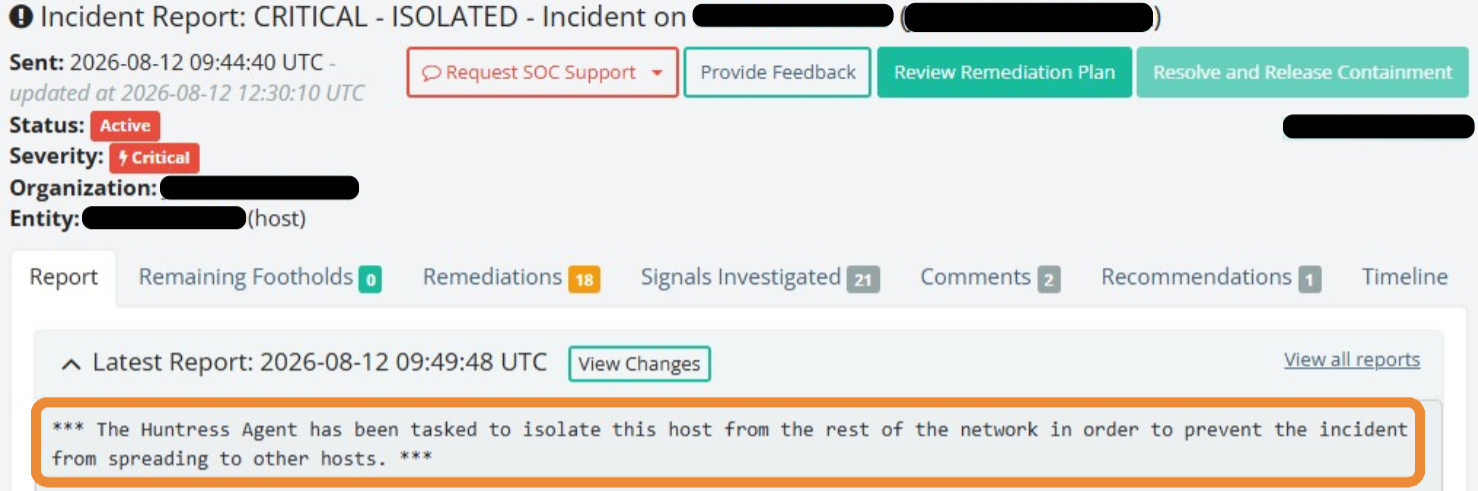
'Why this matters' is answered at the top of each report on the Report tab and is preceded by three asterisks: ***
EDR:
ITDR:
What Huntress Did
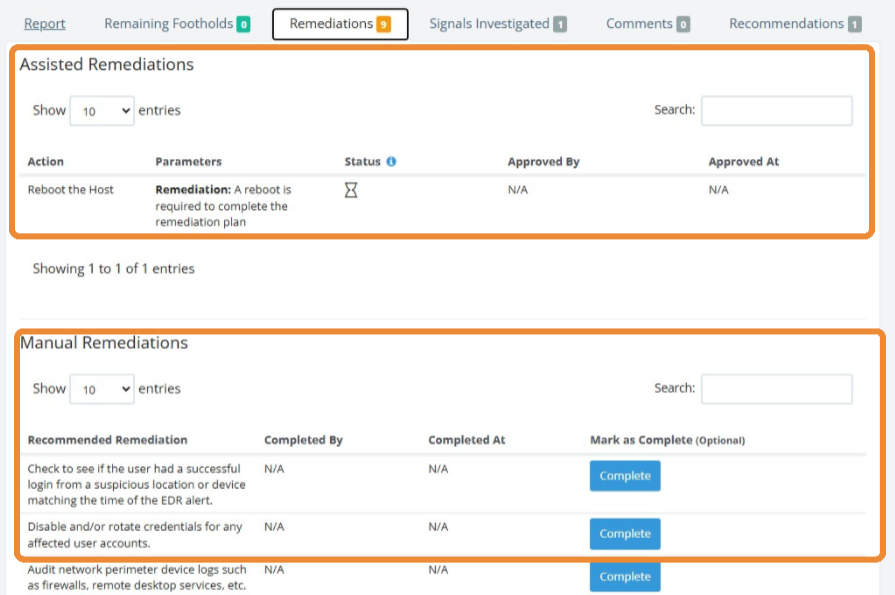
What Huntress did can be found on the the Remediations tab, which outlines the actions needed to contain and resolve the incident, and tracks each action’s status from approval through completion. Both EDR and ITDR reports will have similar sections: Containment Remediations, Assisted Remediations, and Manual Remediations.
Recommended Actions
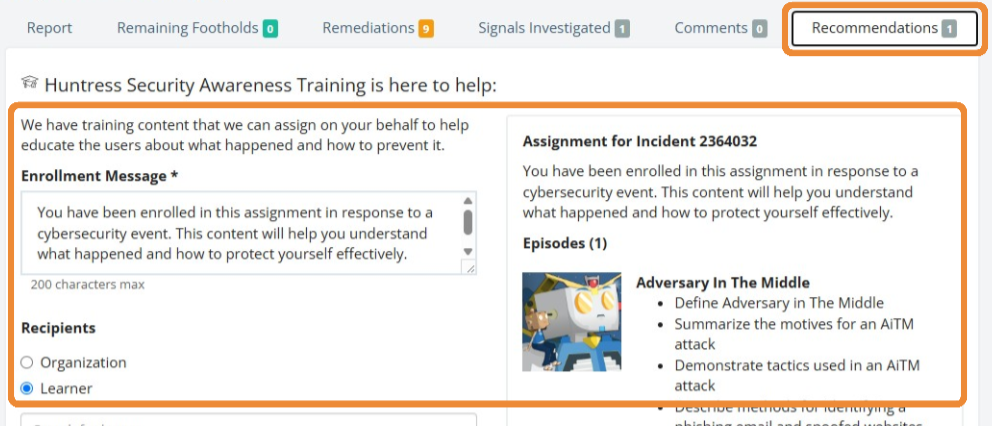
This is the part that answers the question 'What do I need to do?'. These details will be under the Remediations and Recommendations tab. You will also need to interact with buttons on the top of the report.
Each report will have different actions required and will be unique to the environment and type of attack. The below report from our Showcase Environment shows some examples:
Remediations tab:
Recommendations tab:
I need more help reading this report
Understanding an incident report can sometimes be complex, but Huntress Support is available to help. Select any of the Help buttons included within the Huntress platform to open a support ticket or access additional guidance. They are typically seen in:
The bottom lefthand corner of the platform
The top righthand corner, near the hamburger menu settings