
Team: Huntress Managed Security Information and Event Management (SIEM)
Product: Salesforce
Environment: Salesforce Setup; Huntress Platform
Summary: Collect Salesforce login, API, and administrative activity in Huntress Managed SIEM through an OAuth-connected app using the client credentials flow.
Vendor Information
| Vendor | Salesforce |
| Supported Editions | Enterprise, Performance, Unlimited, Developer. Professional Edition requires the API add-on. |
| Supported API Version | Salesforce REST API v62.0 |
| Collection Method | Huntress polls the Salesforce REST API every five minutes for logins, and hourly for configuration changes and event log files |
| Provider Name | Salesforce |
| Vendor Reference Links | EventLogFile, LoginHistory, SetupAuditTrail |
In this Article
What Huntress Collects
Before You Begin
Permissions for the Run As User
Turn On Event Log File Generation
Configure the Connected App in Salesforce
Configure the Source in Huntress
What to Expect After Connecting
Searching Salesforce Logs in SIEM
Example Log Messages
What Is Not Collected
Troubleshooting
What Huntress Collects
| Feed | Contents | First event appears |
|---|---|---|
| Login history | Every login attempt, successful and failed, with source IP, geography, and client | Within minutes |
| Setup audit trail | Administrative configuration changes, including who made each one | Within an hour |
| Event log files | Logins, logouts, report runs and exports, page views, and API calls | The following day |
Login history and the setup audit trail need only API access. Event log files additionally require the setting covered in the next section.
Before You Begin
You need:
- A supported Salesforce edition. Starter Edition can't do this at all. It offers no way to create a connected app, and the REST API refuses the session.
- A Salesforce administrator who can reach Setup, create a connected app, and change Event Monitoring settings.
- A Salesforce user account for the connected app to run as, holding the permissions listed below.
- A Huntress account with the Huntress Managed SIEM entitlement.
-
Room in your Salesforce API request allowance. Huntress polls your org every five minutes, which costs roughly 600 API requests a day. That figure tracks the poll schedule rather than how busy your org is, so a quiet org and a busy one cost about the same. Measured against an org with a 15,000 request allowance, Huntress consumed under 4 percent of it.
- To view your allowance, open Setup > Company Information and check API Requests > Last 24 Hours.
Note: Neither Salesforce Shield nor the Event Monitoring add-on is required. Without one of them you still receive login history and the setup audit trail in full, and event log files are limited to the Login and Logout event types.
Permissions for the Run As User
| Permission | Feed it unlocks |
|---|---|
| API Enabled | All three. Without it, the token request fails, and no feed is collected. |
| View Event Log Files | Event log files |
| Manage Users, or Monitor Login History | Login history |
| View Setup and Configuration | Setup audit trail |
A user missing one of the three feed permissions still produces a working log source. Huntress collects the feeds the user can access and skips those it cannot, so a partial permission set appears as a missing feed rather than a broken connection.
Turn On Event Log File Generation
Do this before anything else. Salesforce ships this setting switched off, and nothing later in the setup process reveals that it is off.
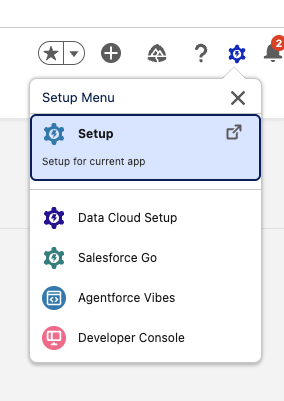
- In Salesforce, open the gear menu in the top navigation bar and choose Setup.
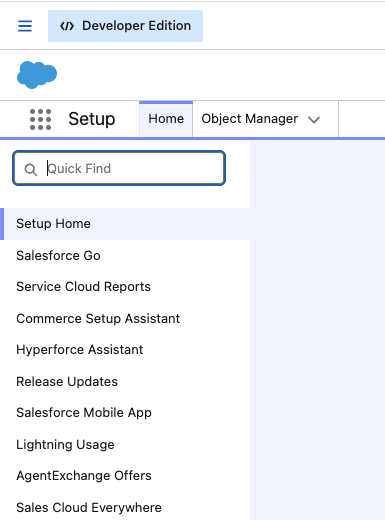
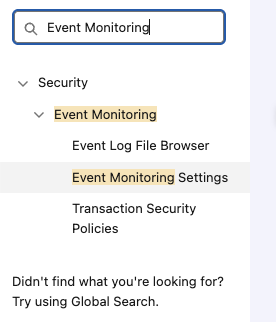
2. In the Setup sidebar, type Event Monitoring into Quick Find, then choose Event Monitoring Settings.
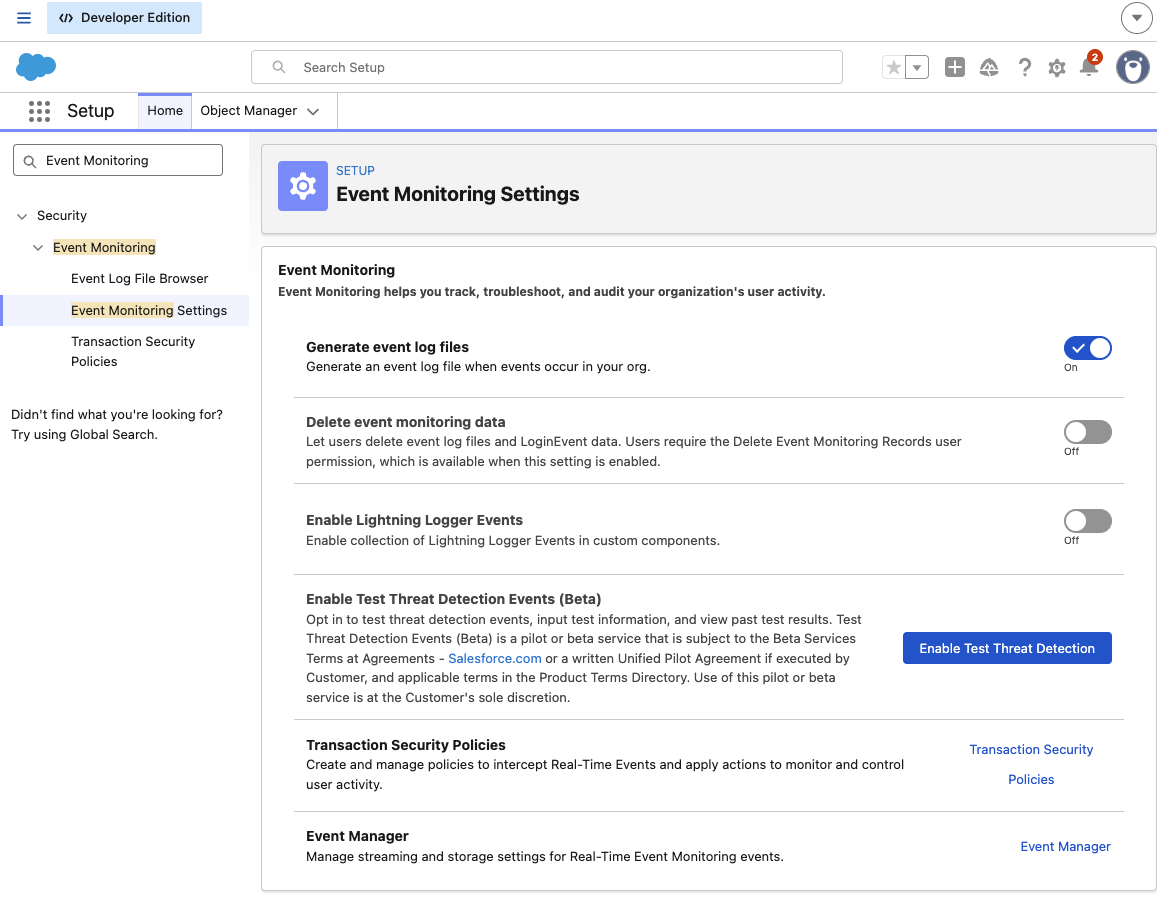
3. Switch on Generate event log files. Salesforce applies the change as soon as you toggle it; there is no save button on this page.
Warning: Files accumulate only from the moment you switch this on. Salesforce generates nothing for the period before it, so there is no history to collect.
Note: The same page links to Event Manager, which controls Real-Time Event Monitoring platform events. That is a different Salesforce product. Event Manager needs no changes for Huntress.
Configure the Connected App in Salesforce
- In Setup, open My Domain and copy the Current My Domain URL. It looks like
https://example.my.salesforce.com. You need it in step 6 and in Huntress. - Open the New Connected App form directly at
https://<your-my-domain>/app/mgmt/forceconnectedapps/forceAppEdit.apexp, replacing<your-my-domain>with the host from step 1. - Fill in a Connected App Name and Contact Email. Use a name you will recognize in your own logs later, such as
Huntress Managed SIEM. - Check Enable OAuth Settings, then:
- Enter any Callback URL. The form requires one and this flow never uses it.
https://login.salesforce.com/services/oauth2/successworks. - Under Selected OAuth Scopes, add Manage user data via APIs (api). This is the only scope needed.
- Check Enable Client Credentials Flow and accept the warning dialog.
- Save. Salesforce warns that the app can take up to ten minutes to become usable.
- Enter any Callback URL. The form requires one and this flow never uses it.
- Set the execution user. From the app's page choose Manage, then Edit Policies. Under the Client Credentials Flow heading, set Run As to the user account holding the permissions above. Save.
- Retrieve the credentials. From the app's page choose Manage Consumer Details. Salesforce emails a verification code, so have that inbox open. Enter the code, then copy the Consumer Key and Consumer Secret.
Warning: The Edit Policies page shows two Run As fields. One belongs to the Custom Connected App Handler and the other to the Client Credentials Flow. Only the one under the Client Credentials Flow heading matters. Setting the wrong one produces an app that looks correct and fails every token request.
Configure the Source in Huntress
- In the Huntress Portal, open Source Management and select Add Source.
- Under Identity/Authentication, select Salesforce.
- Choose the organization the log source belongs to and name the source.
- Enter the My Domain URL you copied from Salesforce.
- Enter the Consumer Key and Consumer Secret.
- Leave Event Types on Standard set unless you have a reason to narrow it. The standard set collects
Login,Logout,LoginAs,Report,ReportExport,URI,API,RestApi, andBulkApi, and it follows Huntress updates to that list. A custom selection is fixed and will not pick up later changes. - Save. Huntress validates the credentials against your org before creating the log source, then checks whether your org generates event log files. If it does not, Huntress says so when the source saves. The source's edit page reports the result under Event Log File Generation: confirmed, not turned on, or could not verify.
Note: Huntress accepts only a My Domain URL ending in .salesforce.com. After you log in to Salesforce the address bar reads ...lightning.force.com, but the OAuth token endpoint lives on ...my.salesforce.com. The Lightning host answers a token request with an HTML login page instead of a token, so it cannot be used.
What to Expect After Connecting
Logins appear within minutes, and configuration changes within an hour. Both come from live API queries rather than from generated files. Huntress queries the login history every five minutes and the setup audit trail once an hour, since configuration changes are rare.
Event log file events arrive the next day. Salesforce generates daily log files at least a day after the events they contain. Measured on a live org, the file covering one day appeared at 10:18 UTC the following day, so an event at midnight became searchable about 34 hours later.
The collection starts when you connect. Salesforce maintains a setup audit trail going back at least 180 days and its own login history, but Huntress collects data forward from the moment you save the log source rather than importing that history. Event log files are a partial exception. About an hour after you connect, Huntress looks back 24 hours for files, so a daily file Salesforce generated the day before you connected can arrive.
A successful connection test proves only that the credentials work. It can't tell that event log file generation is off, that your edition lacks the entitlement, or that the event types you picked do not exist in your org. Each of those produces a healthy log source that delivers fewer rows than you expect.
You will see recurring logins from the connected app. Huntress authenticates once per poll, every five minutes, and once more for each event log file it downloads. Each authentication is, in itself, a login in your org. Expect at least 288 of them a day, attributed to your Run As user, in your own Salesforce login history, as well as in the events Huntress collects. To set them aside in SIEM, filter on service.name, which carries the connected app name you chose in step 3.
The event log file types your org produces vary. Requesting a type your org does not generate is harmless and returns nothing. Type availability depends on your Salesforce edition and on whether you have the Event Monitoring add-on.
Retention of the source data is set by Salesforce. Orgs with Shield or the Event Monitoring add-on keep event log files for 365 days by default, adjustable down to a 30-day floor. Developer Edition and trial orgs keep them for one day. Salesforce also documents that event log files can be lost during site switches, instance refreshes, and outages. Events Huntress has already collected are held under your normal SIEM retention.
Searching Salesforce Logs in SIEM
Huntress normalizes all three feeds to ECS fields. Event log file records also keep every column Salesforce sent, searchable under the salesforce. prefix. Login history keeps salesforce.LoginType, salesforce.ApiType, salesforce.ApiVersion, salesforce.AuthenticationServiceId, salesforce.AuthMethodReference, salesforce.ClientVersion, salesforce.ForwardedForIp, salesforce.LoginSubType, and salesforce.TlsProtocol beyond the ECS fields, and the setup audit trail keeps salesforce.Action, salesforce.Section, and salesforce.DelegateUser.
Note: salesforce.AuthMethodReference and salesforce.AuthenticationServiceId are filled only on single sign-on logins. They carry the authentication methods your identity provider reported, which for Microsoft Entra ID includes whether multi-factor authentication was used. Logins through Salesforce's own login page leave both empty.
| Field | Description | Example |
|---|---|---|
event.provider |
Always identifies the source vendor. | Salesforce |
event.category |
Normalized category. |
authentication, configuration, iam, file, web, api
|
event.type |
Normalized type. |
start, end, change, admin, access
|
event.action |
Normalized action, and the field that identifies the feed. |
login_history, setup_audit_trail, user_login
|
event.outcome |
Set on login events. |
success, failure
|
user.id |
Salesforce user id, in 18 character form. An event log file row that lacks Salesforce's derived id carries the 15 character form. | 005gL00000ExAmPlEQAQ |
user.name |
Salesforce username, from the setup audit trail and Login event log file rows. Login history and the other event log file types do not carry it. | admin@example.com |
source.ip |
Client IP address. | 203.0.113.24 |
source.geo.country_iso_code |
Login country, from login history. | US |
service.name |
Connecting application, from login history. On API event log file rows, the client name the caller reported. | Huntress Managed SIEM |
message |
Salesforce's own description of a configuration change. | Changed profile for user admin@example.com |
url.path |
Requested URI, where the event type records one. | /lightning/o/Account/list |
Category, type, and action by feed and event type:
| Feed or EVENT_TYPE | event.category | event.type | event.action |
|---|---|---|---|
| Login history | authentication |
start |
login_history |
| Setup audit trail | configuration |
change |
setup_audit_trail |
Login |
authentication |
start |
user_login |
Logout |
authentication |
end |
user_logout |
LoginAs |
iam |
admin |
login_as |
Report |
file |
access |
report_run |
ReportExport |
file |
access |
report_export |
URI |
web |
access |
page_view |
API |
api |
access |
api_request |
RestApi |
api |
access |
api_request |
BulkApi |
api |
access |
api_request |
Note: Salesforce field names keep their original spelling under the salesforce. prefix, and Salesforce spells them differently per feed. Event log file columns are uppercase with underscores, so search salesforce.LOGIN_STATUS. Login history and setup audit trail fields are mixed case, so search salesforce.LoginType and salesforce.Section. Two fields Huntress adds are lowercase: salesforce.event_log_file_id and salesforce.log_date.
Note: Event log file types outside the nine listed above keep their salesforce. fields and receive no normalized fields beyond event.provider and the timestamp. Search them by salesforce.EVENT_TYPE, and use their own columns, such as salesforce.USER_ID, in place of user.id.
Example Query Builder rows. Each row is a field, an operator, and a value:
| Goal | Field | Operator | Value |
|---|---|---|---|
| Failed logins | event.action |
is | login_history |
event.outcome |
is | failure |
|
| Configuration changes | event.action |
is | setup_audit_trail |
| Permission changes only | event.action |
is | setup_audit_trail |
salesforce.Section |
is | Manage Users |
|
| Report exports | event.action |
is | report_export |
| Administrator impersonation | event.action |
is | login_as |
| Logins from one country | source.geo.country_iso_code |
is | US |
| Activity by one user | user.id |
is | 005gL00000ExAmPlEQAQ |
| One event log file type | salesforce.EVENT_TYPE |
is | BulkApi |
Note: The field box suggests the most common ECS fields and also accepts anything you type. Every salesforce. field is searchable but absent from the suggestion list, so type those in full.
Example Log Messages
The examples below show Salesforce records after Huntress normalizes them. Values are sanitized. The event log file example shows only a representative subset of its salesforce. fields; in practice, every column Salesforce sent is present.
Successful login, from login history:
{
  "@timestamp": "2026-08-24T14:12:03.117Z",
  "event.provider": "Salesforce",
  "event.category": "authentication",
  "event.type": "start",
  "event.action": "login_history",
  "event.outcome": "success",
  "user.id": "005gL00000ExAmPlEQAQ",
  "source.ip": "203.0.113.24",
  "source.geo.country_iso_code": "US",
  "source.geo.country_name": "United States",
  "source.geo.city_name": "Columbia",
  "source.geo.region_name": "Maryland",
  "url.domain": "example.my.salesforce.com",
  "service.name": "Browser",
  "user_agent.name": "Chrome",
  "user_agent.os.name": "Mac OSX",
  "salesforce.LoginType": "Application"
}
Failed login, from login history:
{
  "@timestamp": "2026-08-24T09:41:55.882Z",
  "event.provider": "Salesforce",
  "event.category": "authentication",
  "event.type": "start",
  "event.action": "login_history",
  "event.outcome": "failure",
  "user.id": "005gL00000ExAmPlEQAQ",
  "source.ip": "198.51.100.77",
  "source.geo.country_iso_code": "RO",
  "source.geo.country_name": "Romania",
  "url.domain": "example.my.salesforce.com",
  "service.name": "Browser",
  "user_agent.name": "Firefox",
  "salesforce.LoginType": "Application"
}
Configuration change, from the setup audit trail:
{
  "@timestamp": "2026-08-24T15:02:11.000Z",
  "event.provider": "Salesforce",
  "event.category": "configuration",
  "event.type": "change",
  "event.action": "setup_audit_trail",
  "user.id": "005gL00000ExAmPlEQAQ",
  "user.name": "admin@example.com",
  "message": "Changed profile for user analyst@example.com from Standard User to System Administrator",
  "salesforce.Action": "changedProfileForUser",
  "salesforce.Section": "Manage Users"
}
Report export, from an event log file:
{
  "@timestamp": "2026-08-24T16:30:44.201Z",
  "event.provider": "Salesforce",
  "event.category": "file",
  "event.type": "access",
  "event.action": "report_export",
  "event.id": "4ig0R8Xk1WMhcVLYJb",
  "user.id": "005gL00000ExAmPlEQAQ",
  "source.ip": "203.0.113.51",
  "salesforce.EVENT_TYPE": "ReportExport",
  "salesforce.REPORT_DESCRIPTION": "Opportunities by Stage",
  "salesforce.event_log_file_id": "0AT9L000000XyZaWAK",
  "salesforce.log_date": "2026-08-24T00:00:00.000Z"
}
What Is Not Collected
- Activity from before you connected. All three feeds collect forward from the moment the log source is saved.
- Hourly event log files. Huntress collects the daily files.
- ApiTotalUsage events, unless you select them. The standard set excludes this event type because it is high-volume and carries little security signal. A custom Event Types selection can add it.
- Real-Time Event Monitoring platform events. These are a separate Salesforce product delivered over streaming channels rather than through the objects Huntress queries.
Troubleshooting
No data appears at all, and the log source looks healthy:
- Confirm the Run As user has API Enabled. Without it every feed fails.
- Confirm Run As is set under the Client Credentials Flow heading on Edit Policies, not under the Custom Connected App Handler.
- Confirm at least one login has happened in your org since you connected. On a quiet org the only early events are Huntress's own polling logins.
Logins appear, but event log file events never do.
- Confirm that "Generate event log files" is on in Event Monitoring Settings. This is the most common cause by a wide margin, and it produces no error anywhere. The credentials are valid, the query succeeds, and it returns zero rows. The source page reports what Huntress found under Event Log File Generation; save the log source again to re-check after switching the setting on.
- Confirm that at least one full day has passed. Daily files arrive a day or more after the events they contain.
- Confirm that the Run As user has View Event Log Files.
Configuration changes never appear. Allow an hour after connecting, since Huntress queries the setup audit trail hourly. Then confirm the Run As user has View Setup and Configuration.
Logins never appear. Confirm that the Run As user has Manage Users or Monitor Login History permissions.
Huntress rejects the My Domain URL. Use the address ending in .my.salesforce.com. The .lightning.force.com address from your browser's address bar does not serve the OAuth token endpoint.
Saving the log source fails with "Source must have valid API credentials." A new connected app can take up to 10 minutes to propagate through Salesforce. Wait, then try again before re-copying the credentials.
Event log file events arrive for some types but not others. Type availability depends on your Salesforce edition and on whether you have the Event Monitoring add-on. Without the add-on, Login and Logout are the two types that return data. Huntress collects whatever your org generates from the types you selected.