
Team: Huntress Managed Security Information and Event Management (SIEM)
Product: Endpoint Operating System Logs
Environment: macOS Operating System Endpoints
Summary: Configuration Guide for Collecting macOS Event Logs
In This Article
Before You Begin
Vendor Information
Source Configuration
Step 1: Install the Huntress Agent on each macOS Endpoint
Step 2: Enable macOS Event Log Collection in the Huntress Portal
Account Level
Organization Level
Step 3: Allow Configuration to Apply
Important Information
What's Collected by Default
Log Levels
Tunable Settings
Extending Coverage with Additional Subsystems
Searching macOS Logs in SIEM
Example Log Messages
Troubleshooting
Before You Begin
macOS Unified Logging is always on by default --- unlike AuditD or JournalD on Linux, no operating-system service needs to be enabled. However, the Huntress Agent must be installed and entitled for SIEM on each endpoint, and macOS requires the agent and its system extension to be granted Full Disk Access (FDA), the system extension to be approved, and the network content filter to be approved before any data will flow. Follow Install the Huntress Agent for macOS - Critical Steps for Complete Deployment to complete those approvals. If any are missing, log collection will silently fail to deliver data even after the source is enabled in the Huntress portal.
Caution: macOS events are filtered by severity before they reach SIEM. The agent-side default minimum log level is default (Apple calls this "Notice" in Console.app). Lower-severity events (debug, info) are dropped at the agent before ingestion. If your environment requires a different minimum level, contact Huntress Support.
Vendor Information
| Vendor | Apple |
| Supported Model/Name/Number | macOS endpoints |
| Supported Software Version(s) | macOS Ventura 13 or higher |
| Collection Method | Huntress Agent (via Apple Unified Logging --- os_log / log stream) |
| Query Syntax |
event.provider == "<subsystem>" (e.g. event.provider == "com.apple.opendirectoryd") --- see "Searching macOS Logs" below |
| Billable Sources Calculation | 1 Log Source per Endpoint |
| Additional Information | Apple Unified Logging documentation: Logging | Apple Developer |
Source Configuration
Step 1: Install the Huntress Agent on each macOS Endpoint
In order to collect macOS event logs, the Huntress Agent must be installed on each macOS endpoint that needs logging, and entitled (aka licensed) for SIEM.
Unlike Linux, macOS Unified Logging is always on by default, so no additional OS-level logging service needs to be enabled. However, the Huntress Agent and its system extension must be granted the appropriate permissions to read the unified log stream. See Install the Huntress Agent for macOS - Critical Steps for Complete Deployment for the full MDM, RMM, and manual install paths, including the required Full Disk Access grants and system extension / network content filter approvals.
Step 2: Enable macOS Event Log Collection in the Huntress Portal
Follow these steps in the Huntress Platform to enable or manage macOS event log collection for your organizations.
From the Source Management tab under SIEM, click Add Source . Alternatively, from Source Management , choose the Categories tab, click View Details on the Endpoint Logs section, then Configure Log Collection. Both options bring you to the same place.
Choose macOS Event Logs → Configure Log Collection tab.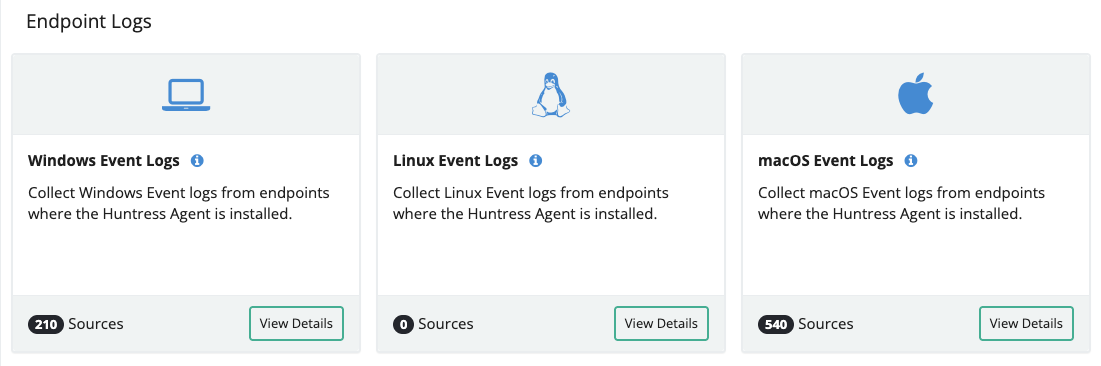
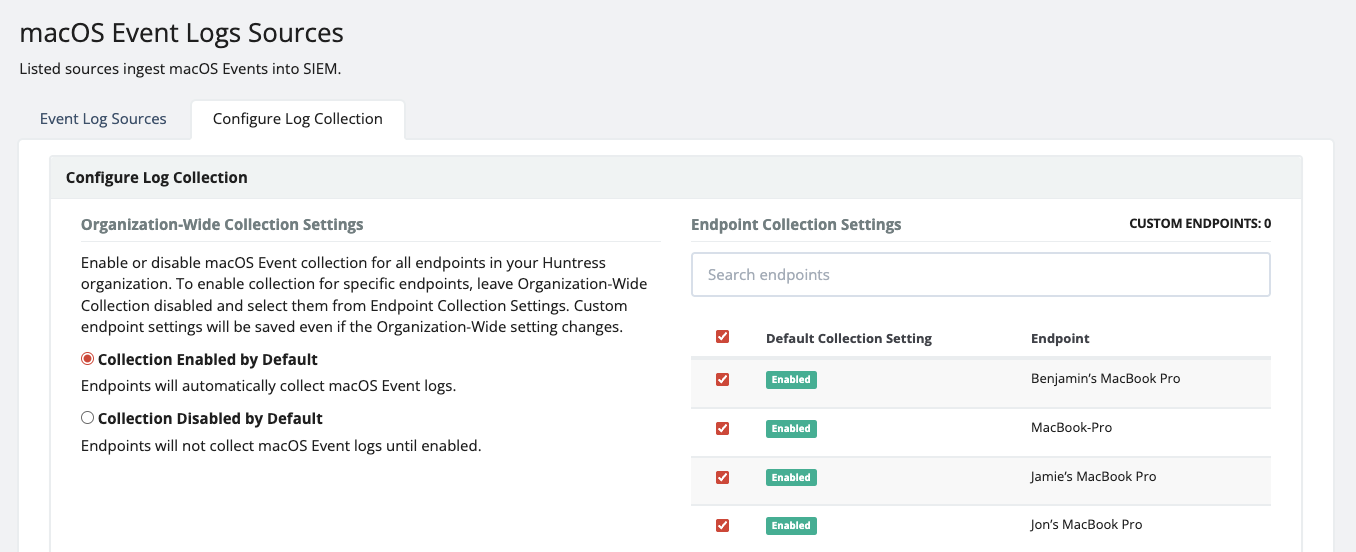
From here, you may opt to set collection to either Enabled by Default or Disabled by Default . This can be done at both the account and organization level.
Account level
Enabled by Default indicates that all endpoints across all organizations will automatically collect macOS event logs.
- To disable an entire single organization, uncheck the box next to the name of the organization and click Save. This will stop all macOS endpoints in that organization from collecting.
- To disable an organization as a whole, but include select endpoints to continue collecting , disable the organization, then click the Edit (pencil icon) to add select endpoints only. Click Save.
Disabled by Default indicates that all endpoints across all organizations will not collect macOS event logs.
- To enable a single organization, check the box next to the name of the organization and click Save. This will add all macOS endpoints in that organization to collection.
- To enable a single endpoint , click the Edit (pencil icon) to add select endpoints only. Click Save.
Organization level
Enabled by Default indicates that all endpoints across the organization will automatically collect macOS event logs.
- To disable a single endpoint from collecting, uncheck the box next to the name of the endpoint and click Save.
Disabled by Default indicates that all endpoints across the organization will not collect macOS event logs.
- To enable a single endpoint, check the box next to the name of the endpoint and click Save. This will add the single endpoint to collection.
Step 3: Allow Configuration to Apply
After about 30 minutes, the configuration updates should appear as new log sources in your Source Management page. If you don't see new data within 30 minutes, verify that the Huntress Agent on the endpoint has the required permissions and that the endpoint has been active recently enough to generate events.
Important Information
Huntress Managed SIEM collects macOS event data from Apple Unified Logging --- the same os_log stream that powers Console.app and the log stream command-line tool. The agent subscribes to a curated set of subsystems that cover the security-relevant signals on macOS.
What's Collected by Default
The Huntress Agent ships with a default set of macOS subsystems covering:
- Authentication and identity --- login attempts, directory lookups, authorization decisions
- Privilege and policy --- security state changes, system policy decisions, install events
- Privacy and access control --- Transparency, Consent, and Control (TCC) grants and denials
- Endpoint security --- events from Apple's Endpoint Security framework
- Inter-process communication --- XPC connection lifecycle
- Network and session activity --- network state changes, session lifecycle events
The specific subsystems subscribed to by default are:
| Subsystem | Coverage |
|---|---|
com.apple.securityd |
Authentication, keychain, certificate validation |
com.apple.opendirectoryd |
Directory service lookups, user/group resolution |
com.apple.loginwindow |
Login session lifecycle |
com.apple.Authorization |
Authorization Services policy decisions |
com.apple.xpc |
XPC inter-process connections |
com.apple.network |
Network state and connection lifecycle |
com.apple.endpointsecurity |
Endpoint Security framework events |
com.apple.TCC |
Transparency, Consent, and Control (privacy framework) decisions |
com.apple.secinitd |
Secure init service activity |
com.apple.SystemPolicy |
Gatekeeper and code-signing policy decisions |
com.apple.install |
Software install activity |
com.apple.coreduetd |
System activity and prediction signals |
Events from the Huntress Agent itself and the Huntress EDR connection process are excluded from collection to reduce noise.
Log Levels
macOS events are filtered by severity before being sent to SIEM. The agent uses Apple's canonical log-level vocabulary:
| Level | Description |
|---|---|
debug |
Developer-level diagnostic output |
info |
Informational messages |
default |
Normal operations (Apple calls this "Notice" in Console.app) --- default minimum
|
error |
Recoverable errors |
fault |
Unrecoverable system faults |
By default, Huntress collects events at default severity and above. Lower-severity events are dropped at the agent before they reach SIEM, which reduces noise and billable volume. Contact Huntress Support if your environment requires a different minimum level.
Tunable Settings
The following collection settings can be adjusted by Huntress Support:
| Setting | Default | Description |
|---|---|---|
| Minimum log level | default |
Drop events below this severity at the agent. Allowed values: debug, info, default, error, fault
|
| Polling interval | 60 seconds | How often the agent fetches new log events from Unified Logging |
| Additional subsystems | (none) | Extra macOS subsystems to monitor, layered on top of the defaults |
Extending Coverage with Additional Subsystems
If your organization uses software that logs to its own Unified Logging subsystem (for example, a third-party security tool or in-house application) and you'd like that activity captured in SIEM, contact Huntress Support with the subsystem identifier (such as com.yourvendor.product) and we can add it to your agent configuration. The default subsystem list ships with the agent; additional subsystems are layered on top via Huntress configuration.
Searching macOS Logs in SIEM
Once events are flowing into SIEM, you can query them in the Query Builder. macOS events arrive with the following Elastic Common Schema (ECS) field shape:
| Field | Description | Example |
|---|---|---|
@timestamp |
Event time (UTC) | 2026-03-27T15:18:38.895Z |
message |
Human-readable log message | getpwuid completed, delivered 1 result |
event.provider |
Originating macOS subsystem | com.apple.opendirectoryd |
log.level |
Apple log level |
info, default, error
|
process.name |
Process that emitted the event | opendirectoryd |
process.pid |
Process ID | 130 |
process.thread.id |
Thread ID | 198590 |
macos.category |
Apple-defined event category |
session, connection
|
macos.sender |
Library or component that produced the log line |
SystemCache, libxpc.dylib
|
macos.activity_identifier |
Unified Logging activity identifier | 1006528 |
Example queries:
- All events from a specific subsystem:
event.provider == "com.apple.TCC" - All authentication events:
event.provider IN ("com.apple.securityd", "com.apple.opendirectoryd", "com.apple.loginwindow", "com.apple.Authorization") - All errors and faults:
log.level IN ("error", "fault")
Example Log Messages
Below are sample macOS Unified Log events as they arrive in Huntress SIEM. The events are JSON shaped --- these examples are sanitized.
Directory service event (com.apple.opendirectoryd)
{
  "@timestamp": "2026-03-27T15:18:38.895Z",
  "message": "getpwuid completed, delivered 1 result",
  "event.provider": "com.apple.opendirectoryd",
  "log.level": "info",
  "process.name": "opendirectoryd",
  "process.pid": 130,
  "process.thread.id": 198590,
  "macos.category": "session",
  "macos.sender": "SystemCache",
  "macos.activity_identifier": 1006528
}
XPC connection event (com.apple.xpc)
{
  "@timestamp": "2026-03-27T15:18:38.962Z",
  "message": "[0xa02f53ac0] activating connection: mach=false listener=true peer=false name=(anonymous)",
  "event.provider": "com.apple.xpc",
  "log.level": "default",
  "process.name": "UserEventAgent",
  "process.pid": 358,
  "process.thread.id": 198587,
  "macos.category": "connection",
  "macos.sender": "libxpc.dylib",
  "macos.activity_identifier": 0
}
Troubleshooting
If macOS Event Logs are not appearing in SIEM after enabling collection:
Verify the agent is installed and entitled for SIEM on the endpoint. See the Install the Huntress Agent and SIEM entitlement articles.
Verify the endpoint has been active recently. macOS Unified Logging is event-driven --- an idle endpoint with no logged-in user may not generate enough activity to surface within the first 30 minutes.
Verify Huntress Agent permissions on the endpoint. The agent and its system extension both need Full Disk Access, the system extension needs to be approved, and the network content filter needs to be approved. Follow Install the Huntress Agent for macOS - Critical Steps for Complete Deployment to complete setup. On the endpoint, confirm the agent is fully provisioned by running (agent 0.14.26 or higher):
A fully provisioned endpoint reports:
Verify the source-level configuration. From Source Management, confirm the macOS Event Logs source for the affected endpoint is showing as enabled in the Endpoint Status tab.
If macOS Event Logs are appearing but volume seems unusually low, check whether the minimum log level filter is set higher than expected. By default the agent drops debug and info events; contact Huntress Support to lower the threshold if needed.