
Team: Huntress Managed Security Information and Event Management (SIEM)
Product: SIEM Agent
Environment: Windows
Summary: This guide explains how to configure Microsoft Windows event log collection WEL for Huntress Managed SIEM, including what the Huntress Agent configures automatically and what you must set via Group Policy or local configuration.
In this article
- Vendor Information
- Enable Collection in Huntress Portal
- Understand Automatic vs. Manual Requirements
- Managed via Active Directory GPO
- Managed Locally (Non-Domain Joined)
- Verification
- Recommended Audit Settings
- Example Log Messages
Vendor Information
|
Vendor |
Microsoft |
|---|---|
|
Supported Model Name/Number |
Windows Operating System |
|
Supported Software Version(s) |
Desktop: Windows 7 and later Server: Windows 2008R2 and later |
|
Collection Method |
Windows Event Log |
|
Provider Name |
Microsoft-Windows-Security-Auditing |
|
Additional Information |
Configure Windows Event Log Collection (Portal)
Follow these steps in the Huntress Platform to enable or manage Windows Event Log collection for your organizations.
- From the Source Management tab under SIEM, click Add Source.
- Alternately, from Source Management, choose the Categories tab, View Details on the Windows Event Logs sections, then Configure Log Collection. Both options will bring you to the same place.
- Choose Windows Event Logs > Configure Log Collection tab.
- From here, you may opt to set the collection to either be Enabled by Default, or Disabled by Default. This can be done at both the account and organization level.
Account level
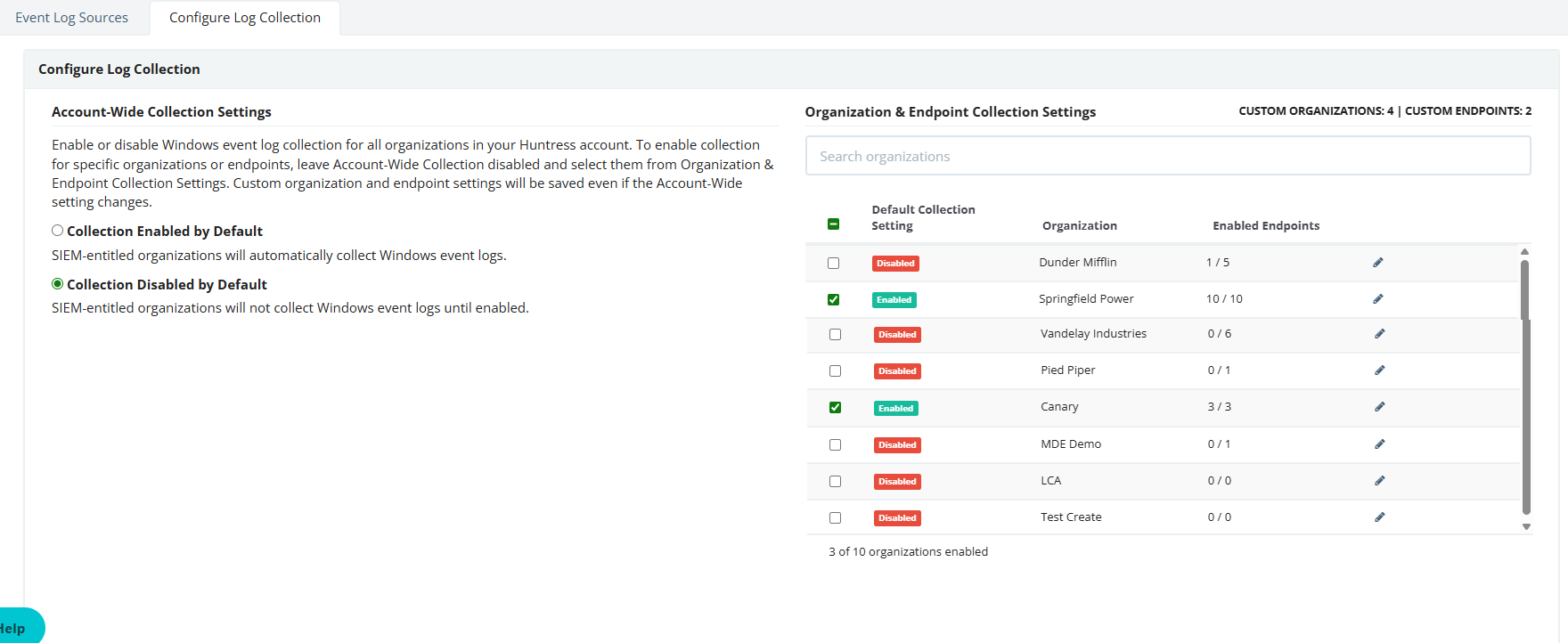
-
Enabled by Default indicates that all endpoints across all organizations will automatically collect Windows event logs.
- To disable an entire single organization, you will need to uncheck the box next to the name of the organization and hit Save. This will stop all endpoints in that organization from syncing.
- If you wish to disable an organization from syncing as a whole, but include select endpoints to continue syncing from that organization, disable the organization, then hit the Edit (Pencil icon) to add select endpoints only. Hit Save.
-
Disabled by Default indicates that all endpoints across all organizations will not collect Windows Event logs.
- To enable a single organization, check the box next to the name of the organization and hit Save. This will add all endpoints in that organization to the sync.
- To enable a single endpoint, hit the Edit (Pencil icon) to add select endpoints only. Hit Save.
Organization level
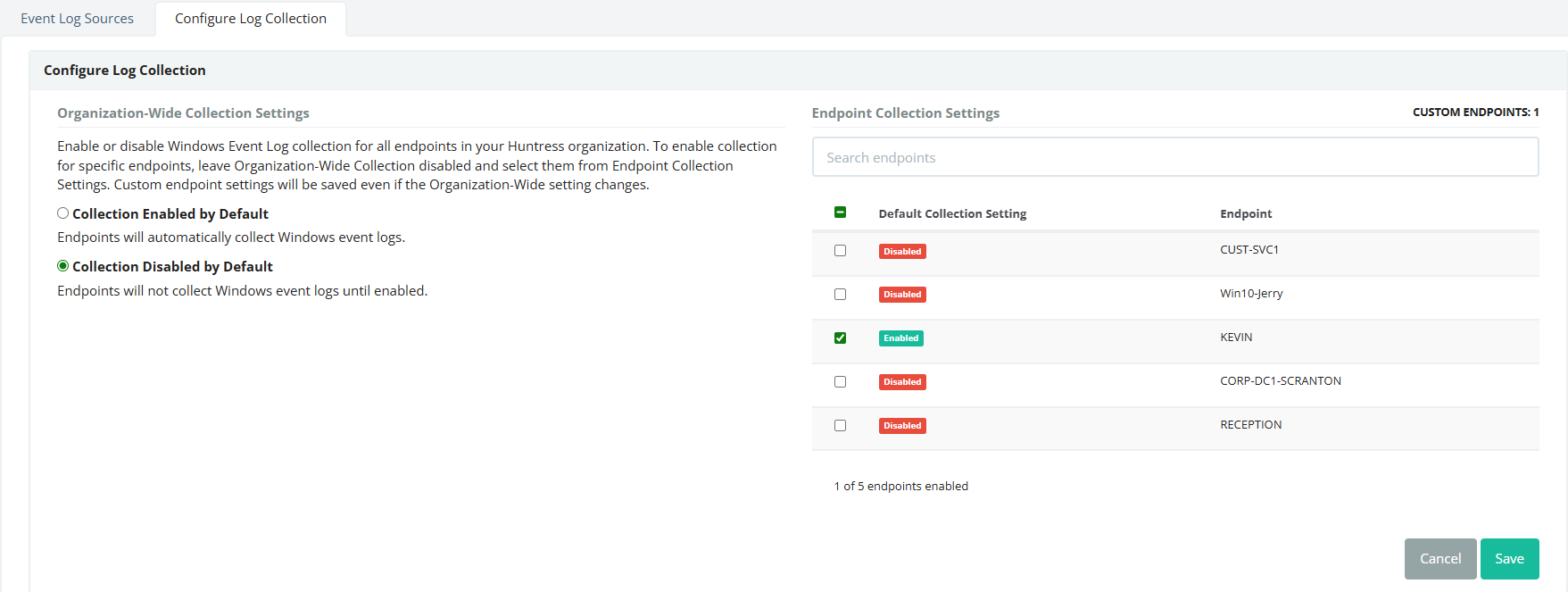
-
Enabled by Default indicates that all endpoints across the organization will automatically collect Windows event logs.
- To disable a single endpoint from syncing you will need to uncheck the box next to the name of the endpoint and hit Save.
-
Disabled by Default indicates that all endpoints across the organization will not collect Windows Event logs.
- To enable a single endpoint, check the box next to the name of the organization and hit Save. This will add the single endpoint to the sync.
What Huntress Configures Automatically vs What You Must Configure
The Huntress Agent automatically attempts to set Advanced Audit Policy settings on supported endpoints. Huntress does not currently make changes to Security log size/retention or PowerShell ModuleLogging/ScriptBlockLogging settings. Configure those via Group Policy or local policy if required. See below for details.
If a Group Policy Object (GPO) is present, it will always take precedence over any local or agent-applied settings. If an existing GPO resets these settings to a different state, Huntress will trigger an escalation. If you want to keep your GPO-enforced settings, simply close the escalation; otherwise, update your GPO to match the recommended baseline below.
Recommended Baseline Hardening (Manual or GPO Required)
Security Log Size and Retention
In addition to audit policy, you must define the Windows Security Event Log settings. These are recommended baseline values and are not set by the Huntress Agent:
| Policy | Setting |
|---|---|
| Maximum security log size | 512000 |
| Retention method for security log | Overwrite events as needed |
Huntress does not set or enforce the Security log maximum size (512000 KB) or retention mode. Apply these via GPO or local configuration.
PowerShell Logging
Huntress does not set or enforce PowerShell ModuleLogging or ScriptBlockLogging registry keys. If you require these for compliance or investigative visibility, enable them via GPO or configuration management tooling.
HKLM\SOFTWARE\Wow6432Node\Policies\Microsoft\Windows\PowerShell\
ModuleLogging → EnableModuleLogging = 1
ModuleLogging\ModuleNames → * = *
ScriptBlockLogging → EnableScriptBlockLogging = 1
Get-EventLog -List

Managed Locally (Non-Domain Joined)
If the endpoint is not domain-joined, apply the configuration individually to each server or workstation. Use the following commands as an administrator:
Security Log Size (PowerShell):
Limit-EventLog -LogName Security -MaximumSize 512000KB -OverflowAction OverwriteAsNeeded
Advanced Audit Policy (CMD):
auditpol /set /subcategory:{0CCE923F-69AE-11D9-BED3-505054503030},{0CCE9242-69AE-11D9-BED3-505054503030},{0CCE9240-69AE-11D9-BED3-505054503030},{0CCE9236-69AE-11D9-BED3-505054503030},{0CCE9238-69AE-11D9-BED3-505054503030},{0CCE9237-69AE-11D9-BED3-505054503030},{0CCE9235-69AE-11D9-BED3-505054503030},{0CCE923B-69AE-11D9-BED3-505054503030},{0CCE9215-69AE-11D9-BED3-505054503030},{0CCE9243-69AE-11D9-BED3-505054503030},{0CCE921C-69AE-11D9-BED3-505054503030},{0CCE9244-69AE-11D9-BED3-505054503030},{0CCE9224-69AE-11D9-BED3-505054503030},{0CCE921F-69AE-11D9-BED3-505054503030},{0CCE9227-69AE-11D9-BED3-505054503030},{0CCE9245-69AE-11D9-BED3-505054503030},{0CCE9232-69AE-11D9-BED3-505054503030},{0CCE9234-69AE-11D9-BED3-505054503030},{0CCE9228-69AE-11D9-BED3-505054503030},{0CCE9214-69AE-11D9-BED3-505054503030},{0CCE9212-69AE-11D9-BED3-505054503030} /success:enable /failure:enable
auditpol /set /subcategory:{0CCE923A-69AE-11D9-BED3-505054503030},{0CCE9248-69AE-11D9-BED3-505054503030},{0CCE923C-69AE-11D9-BED3-505054503030},{0CCE9216-69AE-11D9-BED3-505054503030},{0CCE921B-69AE-11D9-BED3-505054503030},{0CCE922F-69AE-11D9-BED3-505054503030},{0CCE9230-69AE-11D9-BED3-505054503030},{0CCE9231-69AE-11D9-BED3-505054503030},{0CCE9233-69AE-11D9-BED3-505054503030},{0CCE9210-69AE-11D9-BED3-505054503030},{0CCE9211-69AE-11D9-BED3-505054503030} /success:enable
auditpol /set /subcategory:{0CCE9217-69AE-11D9-BED3-505054503030},{0CCE9226-69AE-11D9-BED3-505054503030} /failure:enable
Active Directory Logging
To monitor logging changes, the following registry settings will be automatically updated on your SIEM Enabled domain controller endpoints:
HKEY_LOCAL_MACHINE\SYSTEM\CurrentControlSet\Services\NTDS\Diagnostics\Field Engineering - 5
HKEY_LOCAL_MACHINE\SYSTEM\CurrentControlSet\Services\NTDS\Parameters\Search Time Threshold (msecs)
HKEY_LOCAL_MACHINE\SYSTEM\CurrentControlSet\Services\NTDS\Parameters\Expensive Search Results Threshold
HKEY_LOCAL_MACHINE\SYSTEM\CurrentControlSet\Services\NTDS\Parameters\Inefficient Search Results Threshold
Verification
Verify Audit Policy Settings:
Use the following commands to verify that the Advanced Audit Policy has been applied correctly and that the Security log is active with the appropriate settings.
auditpol /get /category:*
Verify Event Log Status:
Get-EventLog -List
Recommended Advanced Audit Policy Settings
| Category | Subcategory | Audit Setting | Notes |
|---|---|---|---|
|
Account Logon |
Audit Credential Validation |
Success and Failure |
|
|
Account Logon |
Audit Kerberos Authentication Service |
Success and Failure |
|
|
Account Logon |
Audit Kerberos Service Ticket Operations |
Success and Failure |
|
|
Account Logon |
Audit Other Account Logon Events |
No Auditing |
No events are generated within this category. |
|
Account Management |
Audit Application Group Management |
No Auditing |
All events related to deprecated Authorization Manager product. |
|
Account Management |
Audit Computer Account Management |
Success and Failure |
|
|
Account Management |
Audit Distribution Group Management |
Success and Failure |
|
|
Account Management |
Audit Other Account Management Events |
Success |
No failure events are generated. |
|
Account Management |
Audit Security Group Management |
Success and Failure |
|
|
Account Management |
Audit User Account Management |
Success and Failure |
|
|
Detailed Tracking |
Audit DPAPI Activity |
No Auditing |
Informational events for troubleshooting DPAPI activity. |
|
Detailed Tracking |
Audit PNP Activity |
Success |
No failure events are generated. |
|
Detailed Tracking |
Audit Process Creation |
No Auditing |
All process activity is covered by the Huntress EDR. If not using the Huntress EDR, set to Success. |
|
Detailed Tracking |
Audit Process Termination |
No Auditing |
All process activity is covered by the Huntress EDR. |
|
Detailed Tracking |
Audit RPC Events |
No Auditing |
No events generated within this category. |
|
Detailed Tracking |
Audit Token Right Adjustment |
No Auditing |
Starting in Windows 10, events are produced at an extreme rate diluting the value provided. |
|
DS Access |
Audit Detailed Directory Service Replication |
No Auditing |
Informational events for troubleshooting AD replication. |
|
DS Access |
Audit Directory Service Access |
Success and Failure |
|
|
DS Access |
Audit Directory Service Changes |
Success |
No failure events are generated. |
|
DS Access |
Audit Directory Service Replication |
No Auditing |
Informational events for troubleshooting AD replication. |
|
Logon/Logoff |
Audit Account Lockout |
Failure |
No success events are generated. |
|
Logon/Logoff |
Audit User/Device Claims |
No Auditing |
Informational events. No extra value is provided beyond monitoring authentication activity. |
|
Logon/Logoff |
Audit Group Membership |
No Auditing |
Informational events. Capturing full group membership data at the start of every session is excessive and is best obtained on an as needed basis. |
|
Logon/Logoff |
Audit IPsec Extended Mode |
No Auditing |
Informational events for troubleshooting IPsec tunnels. |
|
Logon/Logoff |
Audit IPsec Main Mode |
No Auditing |
Informational events for troubleshooting IPsec tunnels. |
|
Logon/Logoff |
Audit IPsec Quick Mode |
No Auditing |
Informational events for troubleshooting IPsec tunnels. |
|
Logon/Logoff |
Audit Logoff |
Success |
No failure events are generated. |
|
Logon/Logoff |
Audit Logon |
Success and Failure |
|
|
Logon/Logoff |
Audit Network Policy Server |
Success and Failure |
|
|
Logon/Logoff |
Audit Other Logon/Logoff Events |
Success and Failure |
|
|
Logon/Logoff |
Audit Special Logon |
Success |
No failure events are generated. |
|
Object Access |
Audit Application Generated |
No Auditing |
All events related to deprecated Authorization Manager product. |
|
Object Access |
Audit Certification Services |
No Auditing |
Set to Success and Failure if using Microsoft Certificate Services. |
|
Object Access |
Audit Detailed File Share |
Success and Failure |
|
|
Object Access |
Audit File Share |
Success and Failure |
|
|
Object Access |
Audit File System |
No Auditing |
Event generation is dependent on configuring explicit System Access Control Lists (SACLs). Due to this extra configuration, and ability to detect malicious behavior through other means, it is not recommended to enable these events. |
|
Object Access |
Audit Filtering Platform Connection |
Failure |
Connection success logs generate at a high volume, especially in a domain environment. Value provided from host firewall logs are available through other mechanisms. |
|
Object Access |
Audit Filtering Platform Packet Drop |
No Auditing |
Generates a high volume of events with limited value beyond what is provided through connection monitoring. |
|
Object Access |
Audit Handle Manipulation |
No Auditing |
|
|
Object Access |
Audit Kernel Object |
Success and Failure |
Must have “Audit the access of global system objects” disabled to prevent significant event generation. |
|
Object Access |
Audit Other Object Access Events |
Success and Failure |
|
|
Object Access |
Audit Registry |
No Auditing |
Event generation is dependent on configuring explicit System Access Control Lists (SACLs). Due to this extra configuration, and ability to detect malicious behavior through other means, it is not recommended to enable these events. |
|
Object Access |
Audit Removable Storage |
Success and Failure |
|
|
Object Access |
Audit SAM |
No Auditing |
Informational events. The type of data contained in these events are available through Account Management events. |
|
Object Access |
Audit Central Access Policy Staging |
No Auditing |
Informational events for troubleshooting Dynamic Access Control policies. |
|
Policy Change |
Audit Audit Policy Change |
Success |
No failure events are generated. |
|
Policy Change |
Audit Authentication Policy Change |
Success |
No failure events are generated. |
|
Policy Change |
Audit Authorization Policy Change |
Success |
No failure events are generated. |
|
Policy Change |
Audit Filtering Platform Policy Change |
Success |
No failure events are generated. |
|
Policy Change |
Audit MPSSVC Rule-Level Policy Change |
Success and Failure |
|
|
Policy Change |
Audit Other Policy Change Events |
Success and Failure |
|
|
Privilege Use |
Audit Non Sensitive Privilege Use |
No Auditing |
Informational event that will generate in high volume and provide little value. |
|
Privilege Use |
Audit Other Privilege Use Events |
No Auditing |
Informational events for troubleshooting Transaction Manager. |
|
Privilege Use |
Audit Sensitive Privilege Use |
Success and Failure |
|
|
System |
Audit IPsec Driver |
No Auditing |
Information events for troubleshooting the IPsec service. |
|
System |
Audit Other System Events |
Success and Failure |
|
|
System |
Audit Security State Change |
Success |
No failure events are generated. |
|
System |
Audit Security System Extension |
Success |
No failure events are generated. |
|
System |
Audit System Integrity |
Success and Failure |
|
Troubleshooting Windows Logging Configuration
See our dedicated article here for advanced Windows configuration and troubleshooting steps around enforcing logging standards.
Huntress Managed SIEM will notify you proactively through a Platform Action notification when a device is detected as not having the proper Windows audit logging enforcement. However you can review the state of your Windows device configurations at anytime from your Windows Event Log source page under Source Management.
This page includes all affected Windows sources, and guidance on how to remediate their configurations.
In addition to the notifications, when devices are not configured properly, a banner will appear on the Source Management page to notify of you the misconfigured Windows devices.
Example Log Messages
Below are sample Windows Security Event Log messages for reference.
Logon Event - Event ID 4624
<?xml version='1.0'?>
<Event xmlns='http://schemas.microsoft.com/win/2004/08/events/event'>
  <System>
    <Provider Name='Microsoft-Windows-Security-Auditing' Guid='{54849625-5478-4994-A5BA-3E3B0328C30D}'/>
    <EventID>4624</EventID>
    <Version>2</Version>
    <Level>0</Level>
    <Task>12544</Task>
    <Opcode>0</Opcode>
    <Keywords>0x8020000000000000</Keywords>
    <TimeCreated SystemTime='2015-11-12T00:24:35.079785200Z'/>
    <EventRecordID>211</EventRecordID>
    <Correlation ActivityID='{00D66690-1CDF-0000-AC66-D600DF1CD101}'/>
    <Execution ProcessID='716' ThreadID='760'/>
    <Channel>Security</Channel>
    <Computer>workstation1</Computer>
    <Security/>
  </System>
  <EventData>
    <Data Name='SubjectUserSid'>S-1-5-18</Data>
    <Data Name='SubjectUserName'>workstation1$</Data>
    <Data Name='SubjectDomainName'>workstation1</Data>
    <Data Name='SubjectLogonId'>0x3e7</Data>
    <Data Name='TargetUserSid'>S-1-5-21-1377283216-344919071-3415362939-500</Data>
    <Data Name='TargetUserName'>user1</Data>
    <Data Name='TargetDomainName'>workstation1</Data>
    <Data Name='TargetLogonId'>0x8dcdc</Data>
    <Data Name='LogonType'>2</Data>
    <Data Name='LogonProcessName'>User32</Data>
    <Data Name='AuthenticationPackageName'>Negotiate</Data>
    <Data Name='WorkstationName'>workstation1</Data>
    <Data Name='LogonGuid'>{00000000-0000-0000-0000-000000000000}</Data>
    <Data Name='TransmittedServices'>-</Data>
    <Data Name='LmPackageName'>-</Data>
    <Data Name='KeyLength'>0</Data>
    <Data Name='ProcessId'>0x44c</Data>
    <Data Name='ProcessName'>C:\\Windows\\System32\\svchost.exe</Data>
    <Data Name='IpAddress'>127.0.0.1</Data>
    <Data Name='IpPort'>0</Data>
    <Data Name='ImpersonationLevel'>%%1833</Data>
    <Data Name='RestrictedAdminMode'>-</Data>
    <Data Name='TargetOutboundUserName'>-</Data>
    <Data Name='TargetOutboundDomainName'>-</Data>
    <Data Name='VirtualAccount'>%%1843</Data>
    <Data Name='TargetLinkedLogonId'>0x0</Data>
    <Data Name='ElevatedToken'>%%1842</Data>
  </EventData>
</Event>
Member Added to Local Group - Event ID 4732
<Event xmlns='http://schemas.microsoft.com/win/2004/08/events/event'>
  <System>
    <Provider Name='Microsoft-Windows-Security-Auditing' Guid='{54849625-5478-4994-A5BA-3E3B0328C30D}' />
    <EventID>4732</EventID>
    <Version>0</Version>
    <Level>0</Level>
    <Task>13826</Task>
    <Opcode>0</Opcode>
    <Keywords>0x8020000000000000</Keywords>
    <TimeCreated SystemTime='2015-08-19T03:02:38.563110400Z' />
    <EventRecordID>174856</EventRecordID>
    <Correlation />
    <Execution ProcessID='512' ThreadID='1092' />
    <Channel>Security</Channel>
    <Computer>hostname1</Computer>
    <Security />
  </System>
  <EventData>
    <Data Name='MemberName'>CN=user1,OU=Users,DC=domain,DC=com</Data>
    <Data Name='MemberSid'>S-1-5-21-3457937927-2839227994-823803824-500</Data>
    <Data Name='TargetUserName'>Group01</Data>
    <Data Name='TargetDomainName'>domainname</Data>
    <Data Name='TargetSid'>S-1-5-21-3457937927-2839227994-823803824-6605</Data>
    <Data Name='SubjectUserSid'>domainname\admin</Data>
    <Data Name='SubjectUserName'>admin</Data>
    <Data Name='SubjectDomainName'>domainname</Data>
    <Data Name='SubjectLogonId'>0x3031e</Data>
    <Data Name='PrivilegeList'>-</Data>
  </EventData>
</Event>